
Consider cPanel as your website’s support system that works in the background, so handling a website feels substantially less challenging. Hence, what is cPanel? In essence, it is a well-known Linux based web hosting control panel that gives complete control of your hosting account in your hands, making complex server management tasks a seamless experience. Any beginner can master it because it doesn’t involve any coding or interaction with the command line.
After so many years, even today, cPanel still continues to stand strong and stays extremely consistent. It is powering more than 1.5 million live websites around the world and continues to be a top choice for web developers, SMBs, and web hosting providing companies.
From managing emails, domains, files, to website databases, cPanel makes everything easy through a centralised dashboard, without needing a single command line. If you’re new to web hosting or a beginner who wants to know what is cPanel and what is cPanel used for, then this detailed guide will answer all your questions, including why people still use it and how it can simplify managing your website easily.
So, let’s first talk about what is cPanel and why it’s an important part of web hosting.
What is cPanel in Web hosting?
cPanel is a web-based control panel that makes website management simple using an intuitive dashboard. You can handle daily tasks such as creating email accounts, managing domains, uploading website files, and keeping track of how much storage, you’re utilising, and working with databases, and so on. While cPanel might feel overwhelming at the beginning, the majority of users find it more user-friendly and easier to master.
cPanel works effortlessly with Linux and displays all the settings for your hosting account, including the DNS records, SSL certificates, file permissions, and so on. Also, as it looks the same across all the web hosting plans, once you know how to handle it, you can use that knowledge to manage all types of websites.
Key Features of cPanel
- Email: You can create email accounts, view or modify existing accounts, edit MX records, change passwords, configure mailbox quotas, and so much more.
- Domains: You can set up new domains and subdomains for your account, configure parked domains, redirections, and so much more.
- File Management: You can access and/or modify existing files, take a backup of your website data, and create or manage FTP accounts.
- Databases: Here you can create databases, configure remote access, use phpMyAdmin to access your databases, and lots more.
What is cPanel Used For?
The cPanel web hosting control panel comes with a graphical user interface (GUI) which allows you to easily manage your websites and servers without requiring any technical knowledge. You can easily handle website files, databases, emails, domains, and software deployments.
Now, with the basic idea of what is cPanel in web hosting, its key features, and its use, it’s time to understand what is cPanel hosting.
What is cPanel Hosting?
cPanel hosting is primarily a web hosting service that makes use of the most commonly used control panel, i.e., cPanel, which provides an easy-to-use graphical user interface (GUI) to streamline the website, server, email, domain, and database management.
Who Should Use cPanel Hosting?
cPanel hosting is an all-in-one hosting solution for entrepreneurs, web developers, and reseller hosting providers, giving them full control over their websites. Below you can see how different users benefit from cPanel’s features:
As cPanel allows you to manage your websites, domains, and business emails from a single user interface, entrepreneurs can install more than 380+ scripts like WordPress, Joomla, and Drupal with Softaculous, create new emails, check bandwidth usage, schedule automatic backups, create error logs, and configure 301 redirects for SEO. Thus, it helps business owners to run their online business with minimum effort.
With the help of cPanel hosting, developers can create and manage databases like MySQL, PostgreSQL, and MariaDB; work with different versions of PHP; and use cron jobs to automate tasks that need to be done over and over again, like managing databases. Developers can generate backups, set up subdomains for staging, and securely manage websites using SSH.
cPanel hosting makes life much easier for reseller hosting providers. It allows them to create and manage individual customer accounts with ease, each with its own cPanel login. They can monitor how much disk space and bandwidth each account uses, manage DNS records, and even showcase your own brand with a white-label dashboard.
After learning how different types of users can benefit from cPanel, it is now time to look at how it works.
How Does cPanel Work?
cPanel is basically a layer that sits between you and your web server. You don’t need to write any commands; instead, you log in to a dashboard that lets you control everything with clicks, menus, and simple settings.
Once you set up your hosting account, you’ll receive a personal cPanel login URL, along with a username, and password. After logging in, you’ll be directly taken to the cPanel interface, from where you can access all of your website and hosting tools. There is no need to install a software or a technical setup.
A Look at the cPanel Dashboard
Most of the work takes place on the dashboard. You will find clear sections for files, domains, emails, databases, security, and performance tools. Each icon opens a certain function, such as creating email accounts, uploading files, or scheduling backups. There are a plethora of options, but everything is grouped in a way that makes it easy to navigate around as you become acquainted with it.
What Happens Behind the Scenes?
When you click on something in cPanel, it sends a message to the server telling it what to do. For instance, making an email account or setting up a database happens automatically in the background, so you don’t have to deal with any complicated settings. That’s why cPanel is so useful: it takes care of all the technical details so you can focus on running your website.
WHM, short for Web Host Manager, works hand-in-hand with cPanel but is usually something only hosting providers or resellers use. While cPanel is meant for managing a single website, WHM lets you handle multiple cPanel accounts, tweak server settings, and manage resources all in one place. For most website owners, though, cPanel is all they’ll ever need to use.
How to Use cPanel?
After understanding how cPanel works, let’s learn how to use it in no time. But, before moving ahead, we’ll show you how to access it in multiple ways.
Usually, the number of hosts adds a direct link to the cPanel in your welcome email. But having said that, if you don’t see a link, access cPanel directly through your browser. There are two ways:
If your website URL starts with HTTP, just add :2082 at the end. For HTTPS websites, use :2083 instead.
For example:
http://your-website-address.com:2082
https://your-website-address.com:2083
This will take you straight to your cPanel login page.
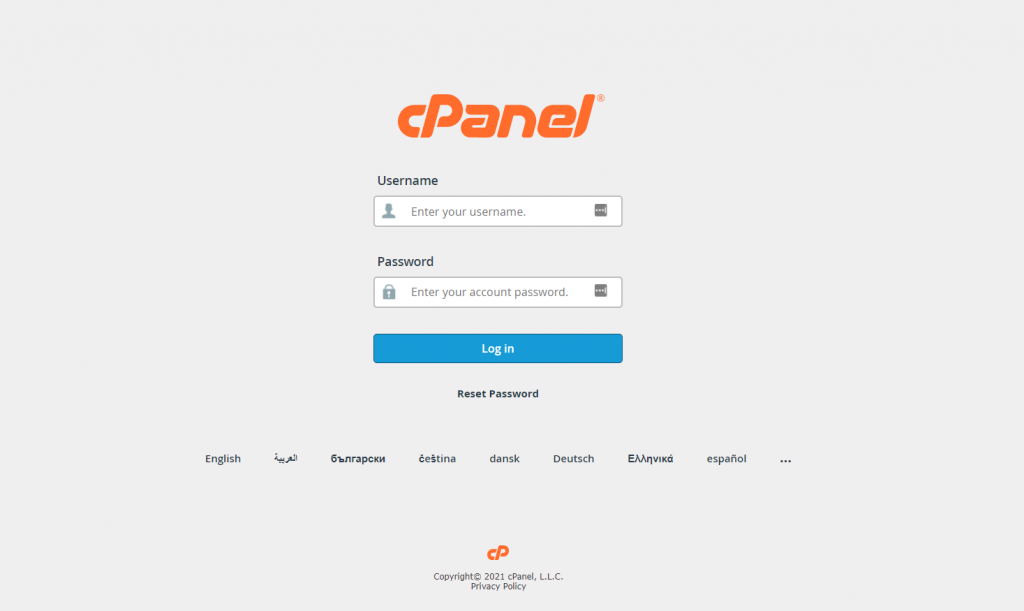
Put in your cPanel username and password in the respective fields and click on the Log in button. Once you get into the control panel dashboard, you should see different features and sections.
Below we will walk you through each section and explain how it works.
In the Files section, you’ll see all the features necessary for file management. You can use this section to upload website files without an FTP client, configure privacy settings, and backup wizard.
How to Use File Manager
The File Manager option present in cPanel works just like a desktop file explorer application, using which users can seamlessly edit, remove, or add files and folders. When you click on the File Manager button, it’ll show you a complete list of your website files.
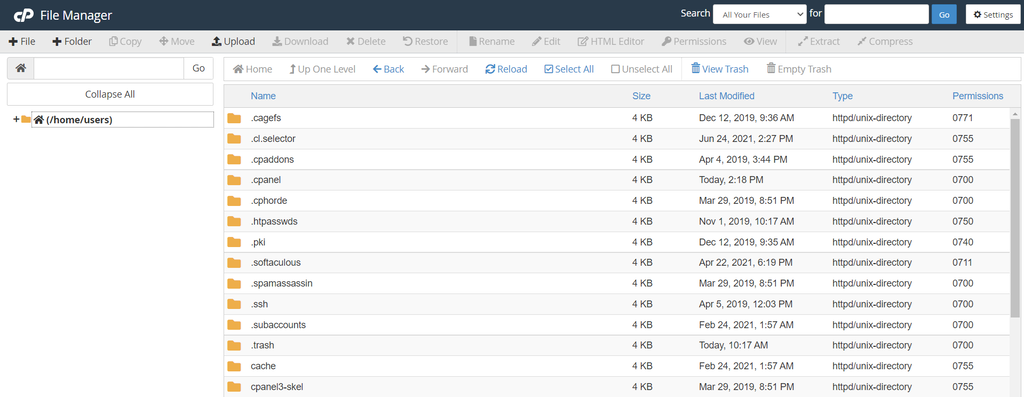
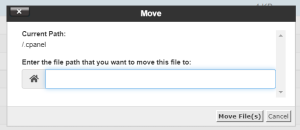
In this section, you’ll find various menu buttons to perform different actions. For instance, if you would like to move a file, simply click the Move button. A new prompt will appear, where you’ll have to enter the new path where you want to move your file and press the Move File(s) button.
Remember that changes made to files in cPanel can impact your server or website; therefore, be careful when making changes so as to prevent errors.
Preferences

In the Preferences section, you can set up the cPanel dashboard’s language, theme, and user information, along with other settings. This module also has tools for managing your password and personal settings.
Storing Important Information
Among the other most significant features, adding your contact information is one of the key features of this section. You can use the Contact Information application to save your contact details and preferences.
To begin, type your email address into the box provided. The system will let you know if anything happens in your account, such as reaching your mailbox or bandwidth limit.
Then go to the bottom of the page and check the boxes that match how you want to be contacted. For example, click the box next to your email address to get a message when it changes.
Just check the boxes to get alerts about certain situations. When you’re done, make sure to click Save.
Databases

If your website is built on a CMS (Content Management System) like WordPress, it needs a database to manage all the essential information like usernames, passwords, and other data. Databases is that section where you can manage your databases, and most of the tasks are carried out using MySQL and phpMyAdmin databases.
How to Create Databases and Manage MySQL Users
Click on the MySQL Databases option present under the Databases section, and you’ll see the Create New Database option. Enter your desired database username in the box below the New Database option and click the Create Database button.
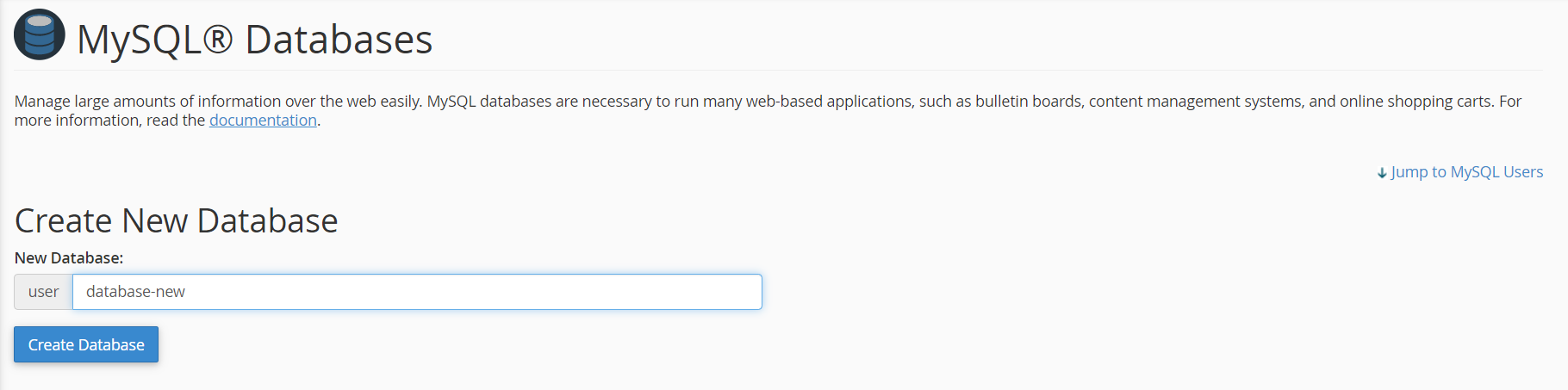
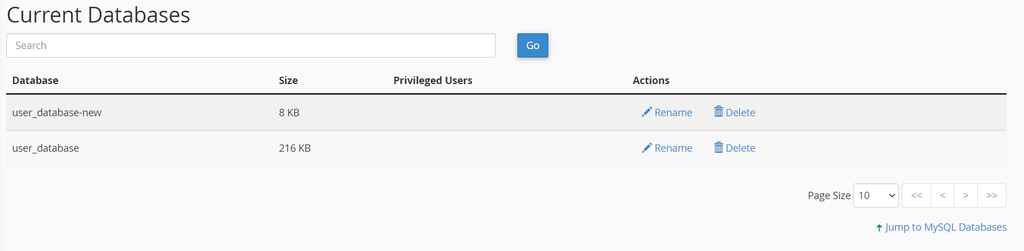
After that, your current database list will have a new database added to it.
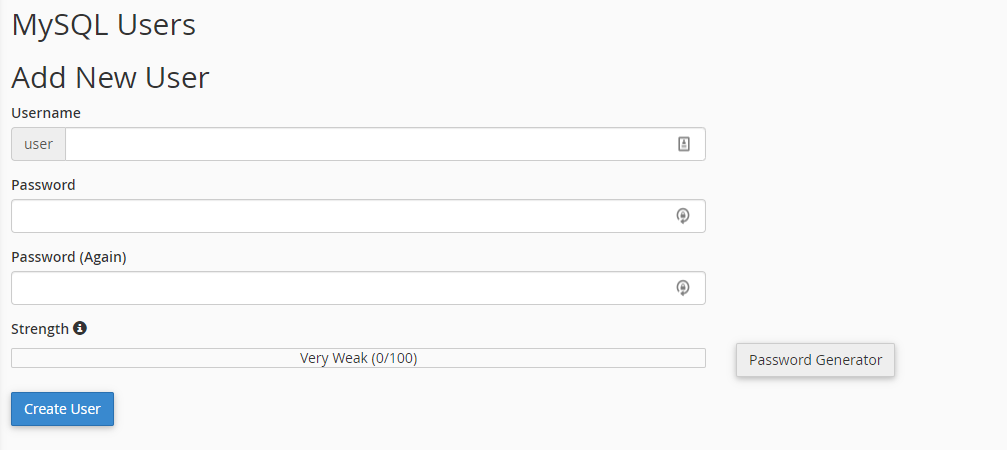
If you would like to add a new MySQL user, scroll to the bottom of the MySQL Users section and add the username and password in the boxes provided below the Add New User option. Then click the Create User button.
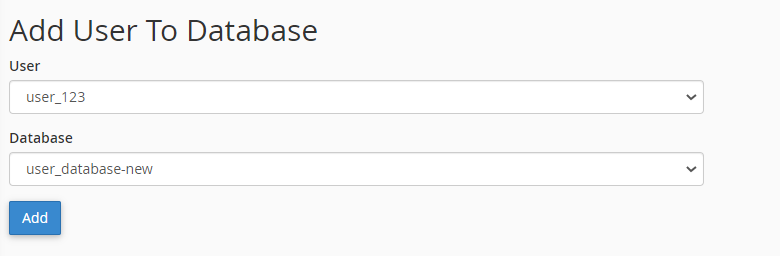
When you’re done, go to the section that says “Add User To Database.” Select the new user and database from the dropdown menu. This will give the user access to the database you chose.
When you’ve finished everything, you can use phpMyAdmin to import your files into this new database. To make sure that your website continues providing reliable performance, try optimising your database.
cPanel – Softaculous Apps Installer
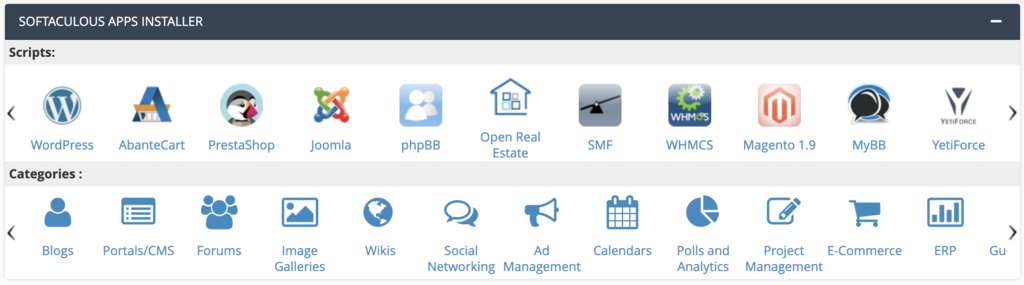
Softaculous is a handy tool that automates the installation of a wide range of applications. Some of the most popular ones include WordPress, Joomla, Drupal, and phpBB, making it simple to set up your website or forum in just a few clicks.
You can install any software right from the dashboard because Softaculous works perfectly with cPanel.
Install Software Using Softaculous
If you would like to install a script, select the script you want to install. If the desired script is not present under the Script section, try to look in different categories.
Software
Normally, your web hosting provider includes a section exclusively dedicated for the Softaculous Apps Installer. But in spite of everything, you can see the auto-installer in the Software section, where you’ll also find other useful scripts and applications.
This section is most commonly used by advanced users because it predominantly focuses on PHP, Ruby, and Perl.
With that being said, if you already have a Cloudflare account, you can sign in and activate it from this page.
Domains
Many webmasters use the same hosting account for more than one website. So, the Domains section has all the tools you need to do anything related to domains, like managing domain names, setting up addon domains for new domain names, and making parked domains.
How to Use the DNS Zone Editor
The Zone Editor in cPanel lets you make, change, and manage your DNS (Domain Name System) records. It takes care of all your domain configuration needs in one place, from adding MX records to changing domain settings.
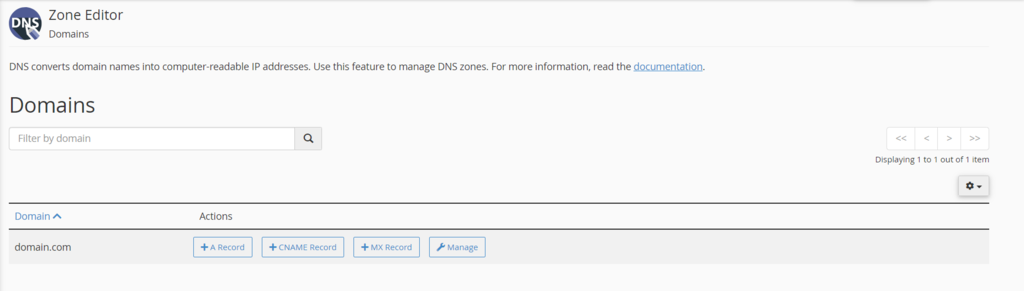
If you want to create an MX record, just press the particular button. A new page will open. Type the priority value into the Priority box and the fully qualified domain name into the Destination field.
Lastly, press ‘Add An MX Record’ to save your changes.
Metrics

This module has features that help keep track of website statistics, like counting the number of visitors and keeping an eye on how resources are being used. These numbers give you information that can help you make choices that will make your website better.
How to View Traffic Statistics
Every tool gives you detailed reports on your website. For example, the AWStats software includes the Awstats feature. It gives traffic stats every hour, day, or month. Additionally, the software also keeps track of visitors’ data, like their browser and location information, to figure out their behaviour and adjust settings to help your website perform at its best.
If you want to see particular information, all the required options are available on the left sidebar. You can change the Reported period to see reports for a certain time frame.
Security
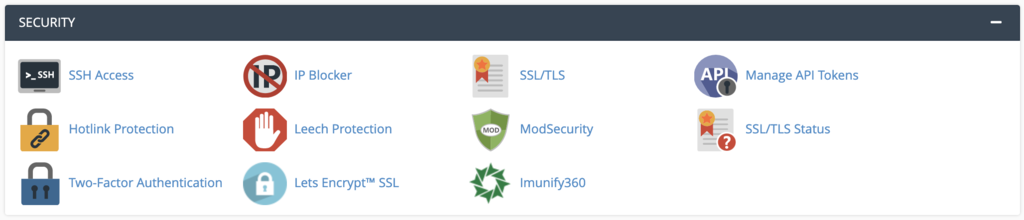
Every website owner is worried about security, especially if they keep private information like credit card numbers. This module helps you keep track of important security settings on your hosting account.
There are many ways to make your website more secure, such as SSH Access, which lets you connect to your server via SSH, and SSL/TLS, which lets you use SSL certificates for extra security. Hotlink Protection is another important feature that stops other websites from stealing your website’s resources.
Advanced

Features in this section are for advanced users who want more control over their websites. LiteSpeed allows them to manage the server, keep track of network information, and clear the WordPress website cache.
Cron Jobs is a useful tool in this section. It automates commands or scripts on your website, like scheduling daily backups or deleting files after a certain amount of time.
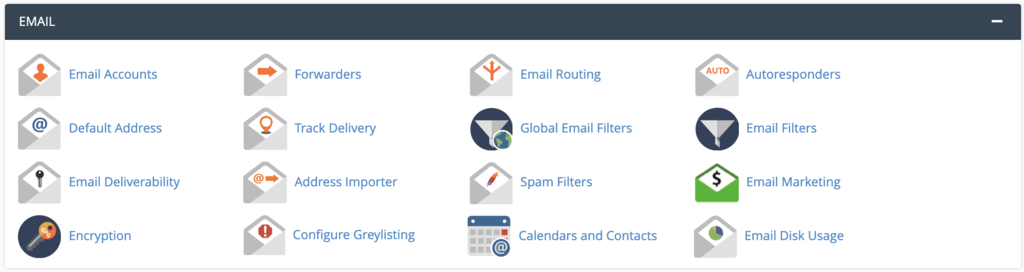
Not all web hosting plans come with email, but if yours does, this is where you’ll do all of your email-related tasks, including setting auto-responders for creating custom email accounts.
Advantages of Using cPanel
- Get All the Tools: You will get all the tools to manage your website from one interface. Everything you need to run your website is available in one place.
- Set Up Your Website Fast: With built-in app installers, you can launch popular platforms like WordPress, Joomla, or Drupal in just a few clicks, no manual setup required.
- Manage Your Files Easily: You can upload, edit, and organise your website files using the File Manager feature, without needing any extra FTP software.
- Email Made Easy: Create email accounts, set up forwarders, and manage spam filters easily, all from within cPanel.
- Strong Built-In Security: Keep your data protected using built-in tools like SSL/TLS, IP blocking, and password protection.
- Simplified Database Management: Even if you’re not a developer, tools like MySQL® and phpMyAdmin make it easy to create and manage databases.
- Saves Time: cPanel takes care of day-to-day server tasks for you, so you can spend less time on technical management and more time growing your website.
cPanel and WHM
cPanel is designed for everyday website management, giving users easy access to files, emails, and databases. WHM (WebHost Manager) is a higher-level tool that lets you control multiple cPanel accounts from one place. This is why WHM is so helpful for developers, resellers, and businesses that run more than one website at a time.
WHM vs cPanel: Simple Comparison
| Feature | WHM | cPanel |
| Access Level | Full server-level control for managing everything | Access limited to a single hosting account |
| What It’s Used For | Creating and managing multiple hosting accounts | Managing one website or hosting account |
| Who Uses It | Resellers, developers, and system administrators | Website owners and website managers |
| Account Control | Create, suspend, edit accounts, and allocate server resources | Manage domains, emails, files, databases, and security for one account |
| Security Management | Configure security settings across the entire server | Handle security for your own account, like SSL and IP blocking |
| Backup & Restore | Run full server or multi-account backups | Create and restore backups for a single account |
| Availability | Available with VPS, Dedicated, and Reseller hosting (licence required) | Available on Shared, VPS, and Dedicated hosting (licence required on most plans) |
cPanel vs Other Control Panels
| Feature | cPanel | Other Control Panels |
| Ease of Use | Very easy to use with a clean, familiar interface | Often less intuitive and may feel confusing at first |
| Learning Curve | Beginner-friendly and quick to learn | Usually requires more time and technical knowledge |
| Popularity & Support | Widely used with extensive documentation and tutorials | Smaller user base and limited learning resources |
| Website Management | Manage domains, files, emails, and databases from one dashboard | Features may be spread across different sections |
| App Installation | One-click installs for popular apps like WordPress | Manual or limited app installation options |
| Security Tools | Built-in tools for SSL, backups, and protection | Security features vary and may need extra setup |
| Stability & Reliability | Proven, stable, and trusted by hosting providers worldwide | Reliability depends on the panel and host |
| Compatibility | Works smoothly with most hosting environments | May have compatibility or integration limitations |
| Best For | Beginners, businesses, developers, and resellers | Advanced users comfortable with custom setups |
Conclusion
In the world of hosting, cPanel is one of the most well-known control panels. We use cPanel at host.co.in because it fits perfectly with our goal of providing powerful web hosting solutions that are flexible, easy to use, and built around the needs of customers.
cPanel is stable, gets regular updates, and has a huge global community that supports it. It’s been in development for decades. That means you won’t have to spend as much time learning how to run your website, and you’ll feel more confident doing it from day one. Our team of cPanel experts is always ready to help you, whether you need help with the basics or more advanced tasks.