
Secure your site with Plesk HTTP Strict Transport Security. Our Plesk Support team explains setup, benefits, and safe HTTPS enforcement.
Plesk HTTP Strict Transport Security Guide for Secure Websites
A single insecure connection can put your entire website at risk. Visitors trust your site with their data, and even one weak entry point can break that trust. This is where HTTP Strict Transport Security plays a key role. When configured correctly in Plesk, HSTS helps lock your website into secure access only, guiding browsers to choose safety every time. This guide explains how HSTS works, why it matters, and how you can manage it confidently in Plesk without adding complexity or risk.

How to Set Up HSTS in Plesk for Stronger Website Security
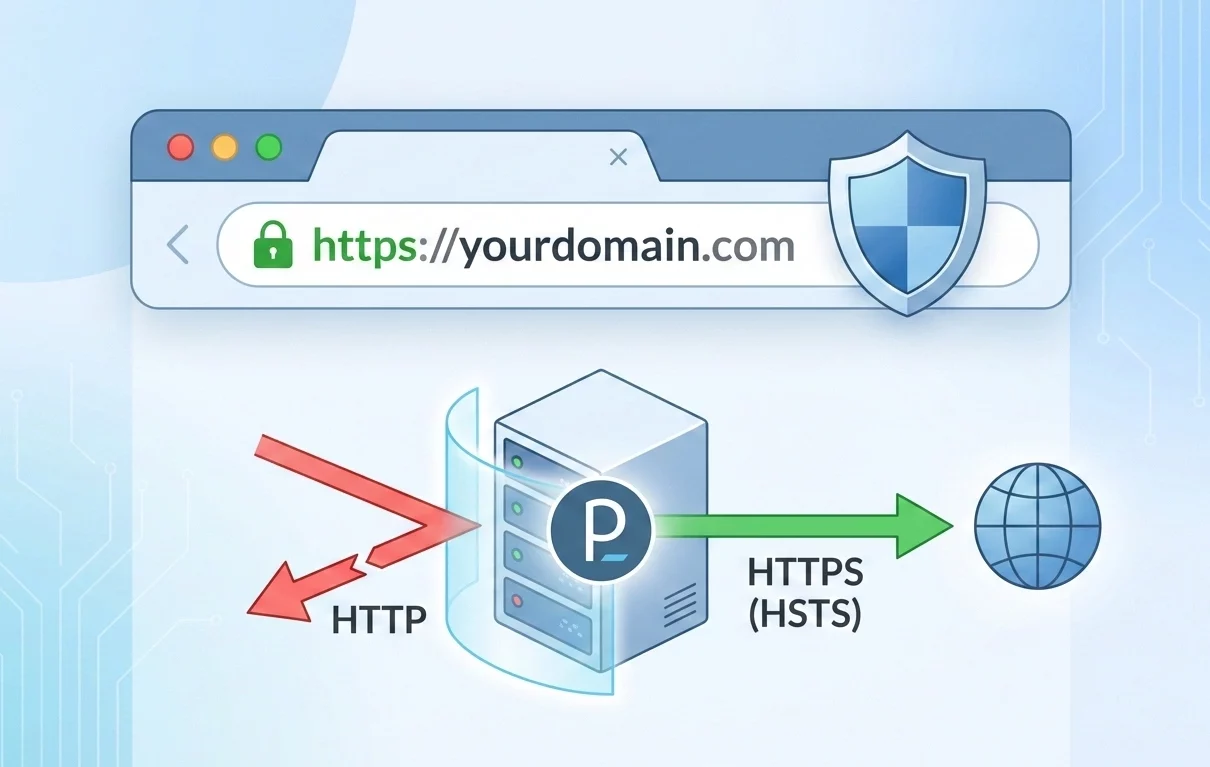
HTTP Strict Transport Security, also known as HSTS, keeps visitors on a safe path when they access your website. It instructs browsers to connect only through HTTPS. Even if someone types an HTTP address or clicks an unsafe link, the browser redirects the request to a secure connection. As a result, private data stays protected, and the risk of downgrade attacks drops.
Why HSTS Matters for Your Website
Website visitors expect privacy and safety. HSTS supports this expectation by blocking unsecured access at the browser level. Once a browser receives the HSTS rule, it remembers to use HTTPS for future visits. This behavior reduces exposure to man-in-the-middle attacks and builds trust with users who care about secure browsing.
Secure your Plesk website now

Preparing Your Site Before Adding HSTS
Before adding HSTS, make sure your site works fully on HTTPS. All pages, images, scripts, and styles should load without mixed content warnings. A valid SSL certificate must remain active at all times. Since browsers cache HSTS rules, removing HTTPS later can cause access issues for visitors.
Adding HSTS in Plesk
Sign in to the Plesk control panel with administrator access. Open the domain where you want to apply HSTS. Navigate to Apache and Nginx Settings under the Domains section.
Depending on your web server, add the HSTS rule in the appropriate directives field. Save the changes and apply the configuration. From this point forward, the server sends a security header with every response.
Understanding Key HSTS Settings
The max age value tells the browser how long to remember the HTTPS rule. A longer duration strengthens protection and reduces accidental insecure access. The includeSubDomains option applies the same rule to all subdomains, which helps avoid weak entry points. The preload option allows browsers to recognize your site as secure even before the first visit, offering an added layer of confidence.
What Happens After HSTS Is Active
Once active, browsers block all HTTP requests to your site and switch to HTTPS automatically. Visitors see consistent, secure connections without manual redirects. Over time, this improves user confidence and supports better security signals for modern browsers.
Best Practices for Using HSTS
Test your site carefully before applying HSTS with long durations. Start with a shorter max age value and increase it after verification. Apply the rule only when you plan to keep HTTPS permanently. Monitor your site after changes to ensure all subdomains function as expected.
With HSTS configured in Plesk, your website offers a safer browsing experience and stronger credibility. Visitors gain confidence, and your site stands out as a secure destination from the very first interaction.
How to Turn HSTS On or Off in Plesk
You can manage HSTS in Plesk through a visual interface or through server-level settings. Both approaches work well when your site already runs fully on HTTPS. Before making any change, confirm that a valid SSL certificate is active and that all traffic moves from HTTP to HTTPS.
Option One: Using the SSL It Extension
This option suits users who prefer a clean interface and quick control.
Start by opening the Extensions section in Plesk and installing SSL if it is not already present. Next, open your domain and go to the SSL and TLS area. Inside this section, you will find the HSTS control.
From here, you can switch HSTS on or off and adjust how long browsers remember the rule. After saving the changes, Plesk applies the setting automatically. This approach reduces manual effort and lowers the chance of configuration mistakes.
Option Two: Manual Setup Through Apache or Nginx
This option offers more control and suits users who are comfortable with server settings.
First, confirm that SSL is active and that HTTP traffic redirects properly to HTTPS. Then open your domain settings and navigate to Apache and Nginx Settings. In the headers section, add the HSTS response rule so browsers always request a secure connection.
To turn HSTS off later, remove the rule or set the duration value to zero. Browsers then stop enforcing HTTPS after the previous policy expires.
Option Three: Using the .htaccess File for Apache
This method applies only to Apache-based sites.
Open the File Manager in Plesk and access your site root folder, often named public_html. Open the .htaccess file or create one if it does not exist. Add the HSTS rule so it applies only when the site runs on HTTPS.
If you want to stop HSTS, remove the rule or clear it from the file. Save the file and allow time for browsers to update their stored policy.
[Need assistance with a different issue? Our team is available 24/7.]
Conclusion
Plesk HTTP Strict Transport Security helps keep your website locked to secure HTTPS access and protects visitors from unsafe connections. It strengthens trust, reduces risk, and supports long-term site security. Talk to us to set up Plesk HTTP Strict Transport Security the right way for your website.